How To Fix A PS4 With Common Hardware And Software Problems
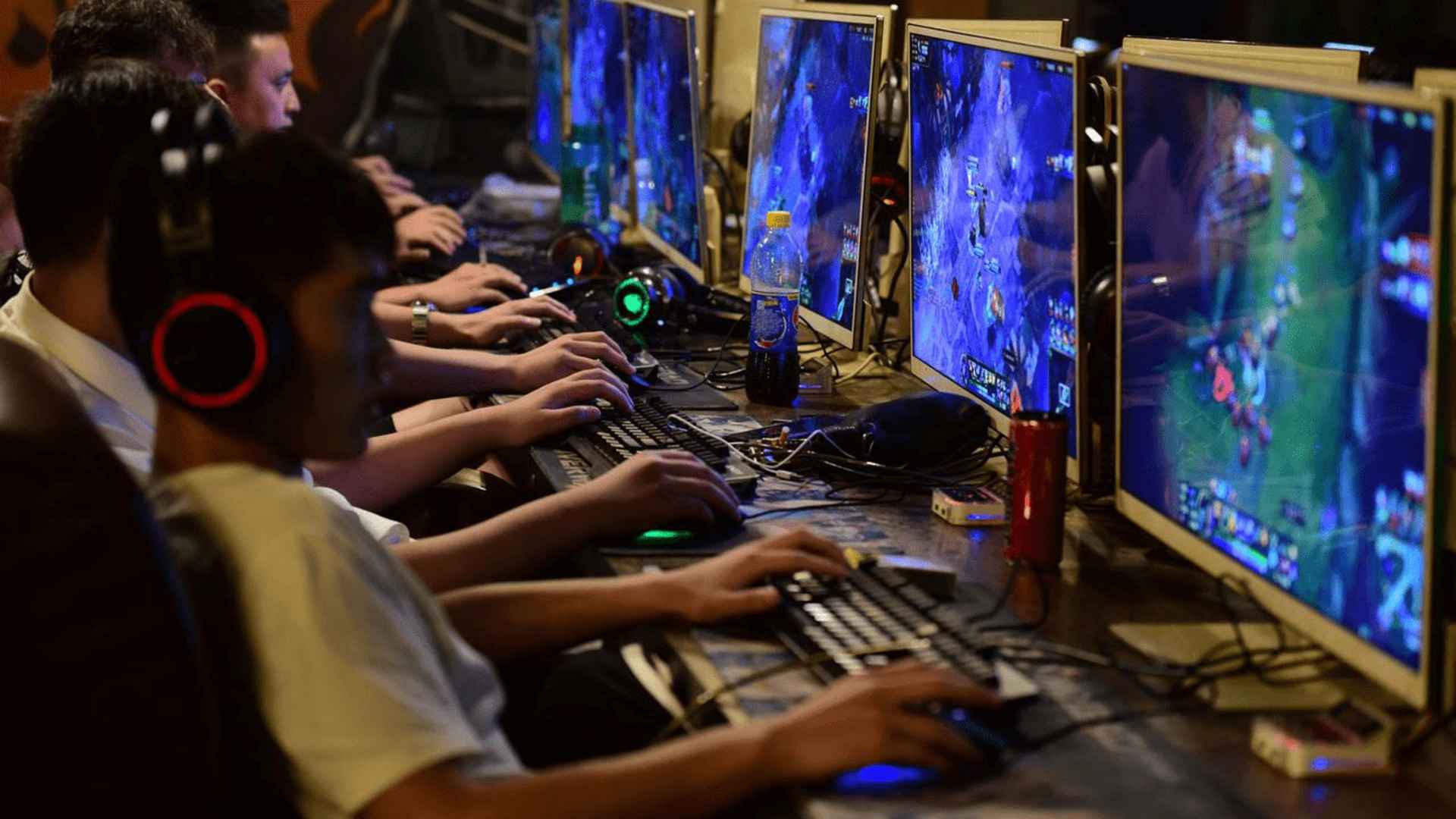
The PlayStation 4 remains a beloved console worldwide, but years of regular use often lead to frustrating performance glitches and component wear. Identifying whether an issue stems from internal system data or physical hardware components is essential for applying the correct repair steps. By taking a methodical approach to troubleshooting, gamers can quickly resolve most common technical obstacles and restore their system to peak performance.
Resolving Frequent PS4 System Software Errors
System crashes, freeze screens, and error codes like CE-34878-0 frequently indicate corrupted application data or pending system updates. Restarting the console in Safe Mode allows users to access diagnostic tools that repair underlying software conflicts without deleting essential user profiles. Executing the option to rebuild the system database reorganizes internal storage and clears away temporary files causing stability problems.
If persistent crashes continue to disrupt gameplay after a database rebuild, initializing the system serves as a powerful fresh start. Performing a complete system software reinstallation requires backing up saved game files to external storage or cloud services beforehand. Downloading the latest recovery firmware onto a USB drive ensures the console receives a clean operating system installation.
Fixing Disc Drive and Storage Drive Faults
Physical hardware components such as the internal hard disk drive and optical disc reader naturally experience mechanical wear over time. A failing hard drive often displays symptoms including slow menu navigation, missing game assets, and frequent installation failures. Swapping the original mechanical drive with a modern solid-state drive significantly improves loading speeds while permanently eliminating drive read errors.
Disc ejection glitches and reading errors are another frequent issue that plagues older console hardware revisions. Cleaning dust accumulation around the optical lens using compressed air can immediately restore the laser's ability to scan game discs properly. Adjusting the manual eject screw located beneath the top cover panel resolves unexpected disc ejection loops caused by slipping internal gears.
Addressing Overheating and Power Connectivity Issues
Console overheating and excessive fan noise typically indicate severe internal dust accumulation or degraded thermal paste on the main processor. Dust blockage prevents heat from dissipating through the cooling fins, forcing the internal cooling fan to run at maximum operational speed. Carefully cleaning the internal vents and replacing old thermal material drastically reduces operating temperatures and prevents unexpected system shutdowns.
Power delivery failure, often recognized by a blinking blue light or complete unresponsiveness, usually points to power supply unit issues or loose power cables. Inspecting external cable connections for physical damage ensures proper electrical contact before attempting internal repairs. Replacing a faulty power supply module is a straightforward repair that restores immediate power functionality without needing a full console replacement.
Troubleshooting HDMI Signal and Display Failures
Audio and video output problems frequently trace back to damaged HDMI ports or corrupted video resolution settings. Inspecting the physical port on the back of the console helps determine if bent internal pins are preventing proper signal transmission. Booting into Safe Mode to change the output resolution to 480p helps bypass display compatibility mismatches with newer high-definition televisions.
Using high-speed HDMI cables verified for proper bandwidth ensures uninterrupted audio and video transmission during demanding gaming sessions. Avoiding tight cable bends and protecting the rear ports from physical strain prolongs hardware longevity significantly. Consistently managing both physical and digital health guarantees your console remains reliable for years to come.